# 2FA - Options and Enrollment Instructions for Google
To start, please make sure you have your Yubikey with you, and your device on and logged into your Google Account.
##### Visit [https://myaccount.google.com/signinoptions/twosv](https://myaccount.google.com/signinoptions/twosv) or follow the QR code below.
`(You may have to log in a second time, so be sure that you are on your RESD provided account while doing so.)`
[ ](https://myaccount.google.com/signinoptions/twosv)
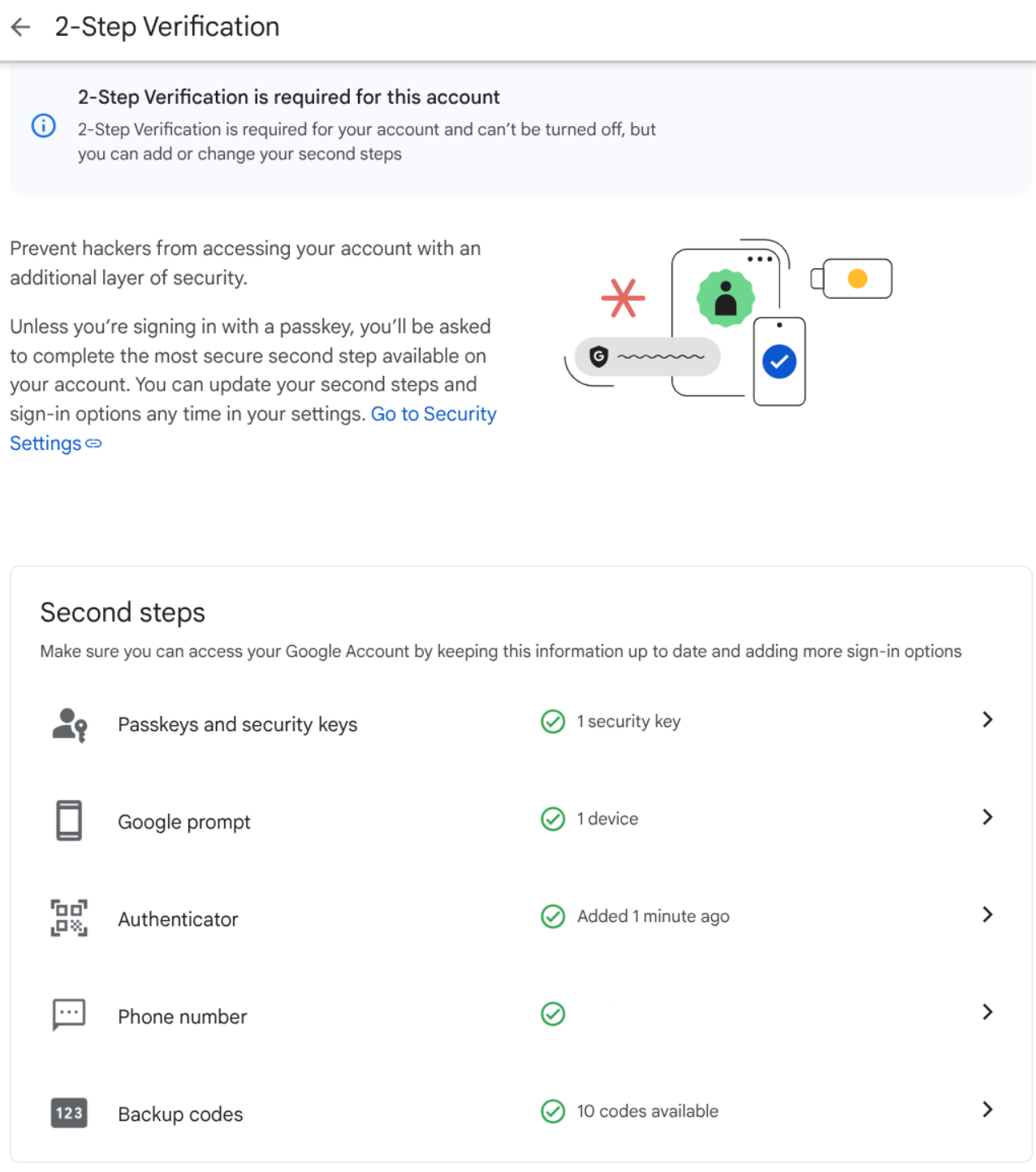
##### Here, you are presented with a list of options.
#####
#### **Please make sure to click on "use hardware key" or "use other device" if prompted.**
[](https://wiki.rsdnmp.org/uploads/images/gallery/2025-08/screenshot-from-2025-08-06-22-51-57.png)
`If you want to use a Yubikey (District Provided) or other hardware security device, you would select Passkeys and security keys.`
`If you want to use the Gmail or Google app on your personal phone, you would select Google prompt.`
`If you want to use an authentication program, you would select Authenticator.`
`If you want to use SMS text messaging, you would select phone number.`
`Finally, backup codes are provided once 2FA is set up. Your I.T. Technician can also provide those if necessary.`